
Understanding Focus Transfer, Scroll Requests, and Gesture Routing Conflicts**
Many developers are surprised when tapping a Button inside a CollectionView item causes the list to unexpectedly:
- Jump downward
- Snap upward
- Scroll by one item
- Lose tap focus and shift position
- Trigger momentum or partial scroll
- Behave differently on Android vs. iOS
This phenomenon occurs frequently in production apps and is often misunderstood as a rendering or virtualization bug.
The real cause is much deeper:
MAUI triggers an implicit focus-change scroll when interactive elements inside virtualized templates receive pointer events.
This article explains why this happens and how to eliminate unwanted scrolling behavior in interactive list items.
Summary Card (TLDR)
Why Buttons Cause Scroll Jumps Inside .NET MAUI CollectionView
1. Buttons trigger focus, and focus triggers scrolling
Interactive controls like Buttons request focus when tapped.
MAUI forwards this to the platform, which sends a scroll request to keep the focused element visible → list jumps.
2. Android aggressively scrolls to maintain “focused visibility”
Platform logic (requestChildFocus, FocusSearch) causes sudden vertical movement
even when only a simple tap was intended.
3. Virtualization amplifies scroll jumps
Recycled containers may shift position, rebind late, or resolve focus after a delay,
causing the viewport to snap unexpectedly.
4. Nested scrolling and gesture routing add instability
Buttons inside CollectionView compete with scroll gestures, resulting in:
- Momentary scroll freeze
- Direction reversal
- Jump-to-row behavior
- Off-by-one scrolling
5. The reliable fix: disable focus on the Button
This prevents scroll requests from being generated, making the list stable.
6. Alternative fix: use a non-focusable “visual button”
Wrap a Label/Frame/Border with a TapGestureRecognizer
to create a button-like UI with zero focus-related scrolling.
Core Principle:
Scrolling jumps occur because focusable controls inside CollectionView trigger OS-level “scroll into view” behavior.
Removing focusability restores stable scrolling.
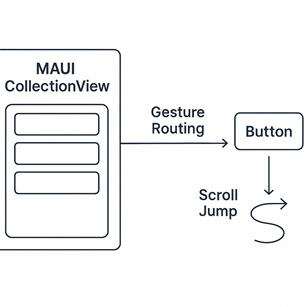
1. Buttons Inside Virtualized Controls Trigger Focus Changes
When the user taps a Button inside a CollectionView row, MAUI internally:
- Assigns keyboard/touch focus to the Button
- Attempts to bring the focused element into view
- Sends a ScrollToRequest to the parent scroller
- The CollectionView auto-scrolls to satisfy the request
This behavior originates from:
- Android’s native FocusSearch() + requestChildFocus()
- iOS’s ScrollRectToVisible
- MAUI’s virtualization engine honoring scroll requests
Therefore:
Your app is not scrolling — the platform is.
MAUI simply forwards the platform’s built-in “focus to visible” logic.
2. Why This Only Happens With Interactive Controls (Button, Entry, Picker, etc.)
Controls that can receive focus are treated differently by the OS:
| Label | No | None |
| Image | No | None |
| Button | Yes | Often triggers scroll |
| Entry | Yes | Always triggers scroll |
| Picker | Yes | Always triggers scroll |
| CheckBox | Mixed | May trigger scroll depending on template |
When placed inside a CollectionView, these controls:
- Request focus
- Cause parent to scroll to keep them visible
- Interfere with gesture routing
- Compete with the list’s scroll mechanics
This is why a simple tap on a Button unexpectedly scrolls the entire view.
3. Why Android Scroll Jumps More Aggressively than iOS
Android aggressively ensures:
- The focused element stays within the visible viewport
- Touchable controls should never be partially clipped
This results in:
- Sudden vertical scroll jumps
- Row snapping
- Scroll offset shifting just before or after the click event
MAUI’s Android backend inherits this behavior directly from RecyclerView.
iOS scrolls more gently, but similar jumps can happen during:
- Keyboard avoidance
- Tap-focus transitions
- Template re-render events
4. Virtualization Makes Scroll Jumps Worse
Because CollectionView:
- Recycles templates
- Reassigns BindingContext
- Recreates visual state when scrolling quickly
A Button tap may occur:
- On a container mid-transition
- Before the new layout stabilizes
- While a previous scroll momentum is still active
- During row measurement recalculation
This can cause:
- A scroll jump even after the Button action completes
- The viewport to snap to a recycled container
- A mismatch between the touched element and the element scrolled into view
If you’ve ever seen:
“I tapped a Button in the middle but the list jumped to the top or bottom”
You’ve seen virtualization + focus change in action.
5. The Reliable Fix: Remove Focusability From the Button
The most effective solution is:
Why this works:
- Button no longer participates in the OS focus system
- CollectionView no longer scrolls to bring it into view
- Tap gesture still works normally
- Scroll jumps disappear entirely
This is the industry-standard fix on Android and mixed-scroll pages.
6. Alternative Fix: Make the Button Consume the Tap Without Owning Focus
Another option:
Text="Action"
Focusable="False"
IsTabStop="False" />
But this only works if you wrap the Button with a container that handles the gesture.
Example:
<Frame.GestureRecognizers>
<TapGestureRecognizer Command="{Binding ButtonCommand}" />
</Frame.GestureRecognizers>
<Button Text="Delete" InputTransparent="True" />
</Frame>
This pattern:
- Prevents focus
- Prevents scroll jump
- Gives you full tap control
- Makes the Button a purely visual element
7. When You Should Not Use a Button Inside a List Item
For high-performance virtualized lists:
Avoid placing:
- Button
- Entry
- Picker
- Editor
- SearchBar
Inside CollectionView templates
unless absolutely necessary.
They all generate:
- Focus transitions
- Scroll requests
- Gesture conflicts
- Additional layout passes
If Button actions are simple (e.g., delete, open, navigate), prefer:
✔ Use a Border or Frame with TapGestureRecognizer
✔ Create a custom “button-like UI” that does not take focus
✔ Avoid interactive controls inside templates when possible
8. Expert-Recommended Template for Stable Interactive Rows
<Border.GestureRecognizers>
<TapGestureRecognizer
Command="{Binding RowTapCommand}"
CommandParameter="{Binding}" />
</Border.GestureRecognizers>
<Grid>
<Label Text="{Binding Title}" />
<Border
Grid.Column="1"
BackgroundColor="#EEE"
Padding="6"
GestureRecognizers="{TapGesture}">
<Label Text="Delete" />
</Border>
</Grid>
</Border>
This avoids:
- Focus
- Scroll jumps
- Gesture conflicts
- Virtualization side effects
While maintaining full interactivity.
Final Expert Takeaway
Unexpected scrolling happens because:
- Interactive controls inside CollectionView receive focus
- Focus triggers native OS scroll requests
- CollectionView scrolls to bring the focused element into view
- Virtualization amplifies timing issues
- ScrollView + CollectionView nesting makes it worse
The solution is simple and reliable:
Remove focusability from the Button
or replace it with a non-focusable interactive element.
Once Button loses focus ownership,
scroll behavior becomes stable and predictable —
even under rapid taps, heavy virtualization, or nested scroll layouts.